Overview
The Crestron Flex Information Gathering Tool gathers all log and version information from the local UC-ENGINE where the application resides. The Flex Information Gathering Tool will get information from only the local system and directly connected peripherals. It does not have the ability to obtain version information or logs remotely due to security measures put in place on the UC-ENGINE.
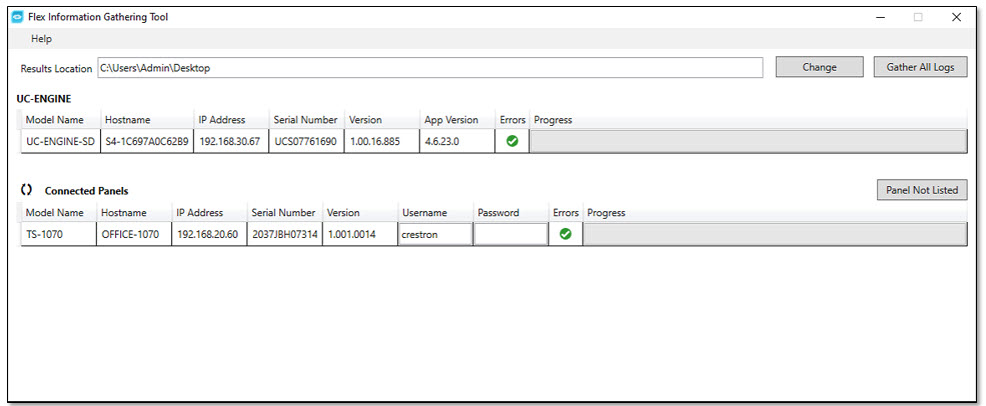
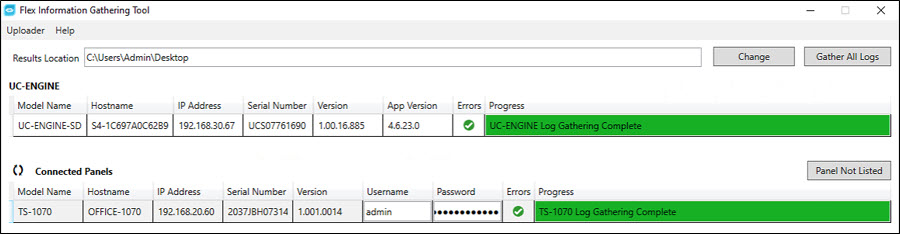
The Flex Information Gathering Tool's opening window provides information for the UC-ENGINE running the application as well as any connected UI panels in use with the Flex systems:
To Run the Crestron Flex Information Tool
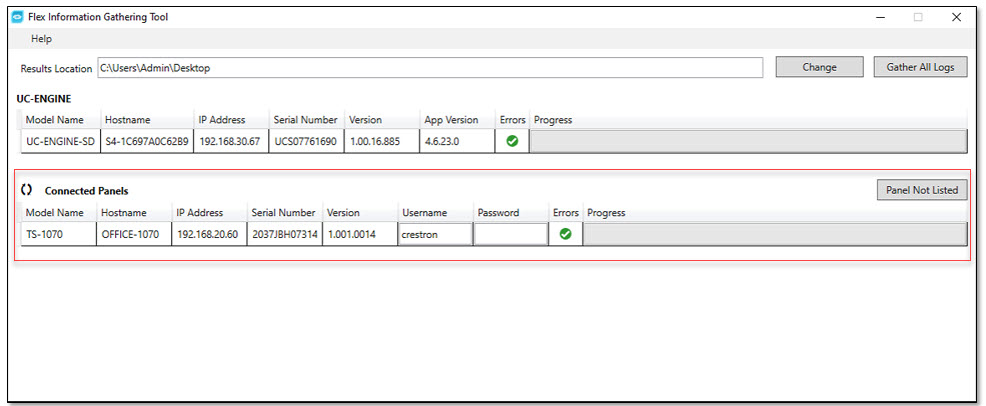
If no panels or incorrect panels are lists, click the Refresh smart icon to refresh the list:
If panel resides on a different network, the auto-discover process is not able to discover the panels.
If panel is not listed, click the Panel Not Listed button to launch the Manual IP Address Entry box. 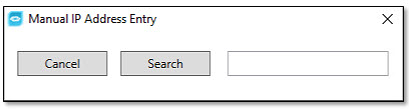
This will attempt to connect directly to specified panel and display it in the Connected Panels list.
Enter the Username and Password in the corresponding text fields for each respective panel listed:

In the Browse For Folder window, navigate to the applicable folder and then press the OK button: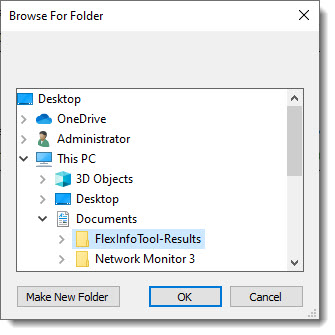
Click on the Gather All Logs button at the top right of the Flex Information Gathering Tool window:

The Flex Gather Information Tool will gather the following information:
• UC-ENGINE version information
• Crestron Software logs
• Microsoft Windows System Information report
• Microsoft Windows DirectX report
• Microsoft Windows Device Manager report
• Microsoft Windows Event Viewer logs
• Microsoft Windows Update logs
• Microsoft Teams Room system logs or Zoom Room system logs (depending on version of Flex system installed)
• Connected UI Panel logs
Supported panels: TSW-1060, TSW-760 (Zoom Only), Mercury, Mercury-X, TS-1070
Note: Mercury Mini currently is not supported by the Flex Information Tool. To obtain logs from this device, please access the units Web Configuration pages to gather logs from there.
Uploader
The Uploader window will automatically be displayed. The Uploader Window lists the logs that have been gathered and zipped up for delivery to Crestron’s secure file server for support review: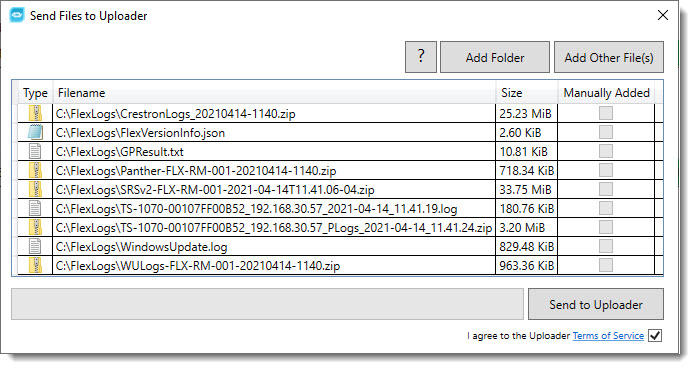
If additional files need to be sent into Crestron Support, select Add Other File(s) button and select the applicable files to add:
Click the Send to Uploader button, when all the necessary files are queued: